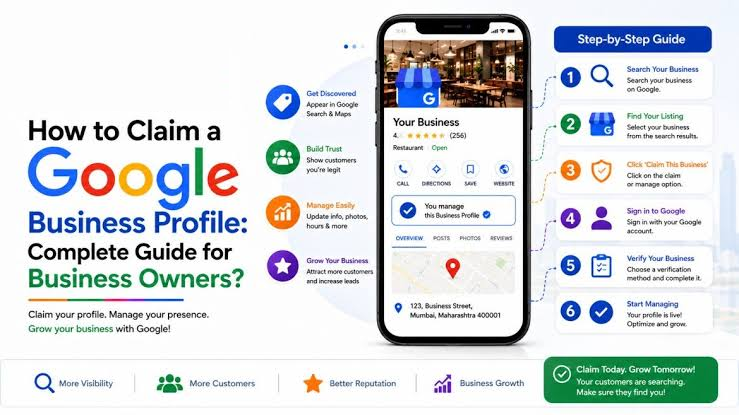
If you are searching for how to claim a business on Google, the first thing to understand is that you may not need to create a new Google Business Profile. Your business may already appear on Google Search or Google Maps, even if you never created the listing yourself. In that situation, the correct process is usually to claim my business Google or request access to the existing Business Profile.
Claiming a business gives an authorized business owner or representative the ability to manage important information associated with the Google Business Profile. Depending on your access level, you can manage business information, respond to reviews, add photos, update hours, and maintain the profile so customers can find accurate information about your business.
This complete guide explains how to claim a business on Google, what to do when another person already manages the profile, how to request ownership, what happens after submitting a request, how to handle an unclaimed profile, and what to do if you have problems taking control of an existing listing.
🚀 Need Help With Google Business Profile Verification?
If your Google Business Profile requires video verification, has failed verification, needs additional verification evidence, or you are dealing with a Service Area Business verification issue, our team can help you understand the verification requirements and prepare your profile correctly. We have successfully assisted 10,000+ businesses worldwide with Google Business Profile verification and suspension-related issues.
What Does It Mean To Claim A Business On Google?
Claiming a business on Google means establishing your authorized access to a Google Business Profile that represents your business. A profile can appear on Google even when the current business owner has not personally created or managed it.
Google may display business information on Search and Maps, and an existing listing can sometimes be available for an authorized business representative to claim. Once the appropriate claiming and verification process is completed, the business can manage the profile according to the access Google provides.
The important difference is between adding a new business to Google and claiming an existing listing. If your business already has a profile, creating another profile for the same location may create duplicate listing problems. Google provides a specific process for claiming an existing Business Profile instead.
Why Should You Claim Your Business On Google?
Claiming your business is important because an unmanaged or unclaimed profile may contain information that you cannot control. Customers may see incorrect business hours, outdated phone numbers, old website information, inaccurate services, or other details that no longer represent your company.
Once you have legitimate ownership or management access, you can keep important business information updated and provide customers with a more accurate representation of your company.
Businesses commonly claim their Google Business Profile to:
- Manage business information displayed on Google.
- Update business hours.
- Add or manage business photos.
- Respond to customer reviews.
- Update phone numbers and website information.
- Manage services and other profile information.
- Protect the business listing from unauthorized management.
- Maintain accurate information on Google Search and Google Maps.
Google also recommends claiming business locations to help protect Business Profiles from unauthorized control or potential hijacking.
Claim My Business Google: What Should I Check First?
Before starting the claiming process, search for your business on both Google Search and Google Maps. Use the exact business name and location information that customers would normally use to find the company.
You should determine whether your business profile is:
- Already claimed and managed by you.
- Unclaimed and available to claim.
- Already verified by another person.
- A duplicate or incorrect listing.
- A profile representing a business that has moved or changed.
This initial check is important because the correct solution depends on the current status of the listing. If the profile is unverified, Google provides a direct claiming process. If another person has already verified it, you may need to request ownership instead.
How To Check If Your Business Is Already Claimed
One of the easiest ways to determine whether you need to claim your listing is to search for your business on Google.
Search for your business name together with the city or location. Review the Business Profile that appears and look for options such as Claim this business or Own this business?.
Google explains that if a Business Profile shows a claim or ownership option, the profile may not yet be claimed. If the process tells you that someone else may manage the profile, the listing is already associated with another manager or owner.
If you already see that you manage the profile, there is no need to create another listing or submit a new ownership request.
How To Claim A Business On Google Step By Step
The process for how to claim a business on Google depends on whether the profile is unclaimed or already controlled by another user. Start with the existing listing and follow the appropriate route.
Step 1: Search For Your Business On Google
Open Google Search or Google Maps and search for your business name and location.
Make sure you select the correct business. If there are multiple businesses with similar names, carefully compare the address, phone number, category, website, and other available information.
Selecting the wrong listing can send your ownership request to a profile that does not actually represent your business.
Step 2: Find The Existing Business Profile
Once you find your business, open the Business Profile and review the information displayed.
Check whether the listing represents your actual business. Pay attention to the business name, address, location, phone number, website, and other identifying information.
If the listing is correct and belongs to your business, continue with the claiming process instead of creating another profile.
Step 3: Select Claim This Business
If the Business Profile is unclaimed, Google may provide a Claim this business or similar ownership option.
Google currently explains that an unverified Business Profile can be claimed through Google Maps by searching for the business, selecting the correct profile, choosing the claiming option, and then selecting a verification method.
Follow the instructions displayed by Google because the available verification options can vary between businesses.
Step 4: Sign In To The Correct Google Account
Make sure you are signed in to the Google Account that you want to use for managing the business.
Ideally, use an account that can remain under the business's control rather than an account belonging to a temporary employee or outside individual.
If several people need access later, Google provides owner and manager roles, so you do not need to share one Google Account password with everyone who works on the profile.
Step 5: Complete The Available Verification Process
Claiming a profile does not necessarily mean that you immediately gain full control. Google may require verification before ownership or management access is established.
The verification method is determined by Google and can vary depending on the business and profile. Follow the exact instructions shown in your Business Profile rather than trying to force a verification method that is not offered.
If you need more information about verification after claiming the listing, visit our Google Business Profile verification guide.
How To Claim A Google Business Profile That Someone Else Owns
One of the most common ownership problems occurs when you find your business on Google but another person has already verified and manages the profile.
This can happen when:
- A previous employee created the profile.
- A former marketing agency controls the listing.
- A previous business owner still manages the profile.
- A partner or employee originally created the listing.
- The business changed management but profile ownership was never transferred.
- You acquired an existing business and need control of its profile.
In these situations, you should not create a second profile simply because you cannot access the first one. Google provides a process for requesting ownership from the current profile owner.
How To Request Ownership Of A Google Business Profile
If another person has already verified the Business Profile, Google allows an authorized business representative to request ownership.
The current Google process is:
- Go to Google's Business Profile add or claim page.
- Enter your business name and address.
- Select the correct business from the results.
- Look for the message indicating that someone else may manage the Business Profile.
- Select Request access.
- Complete the ownership request form.
- Submit the request.
Google states that the current profile owner is notified by email after the request is submitted. The current owner has three days to respond.
What Happens After You Request Business Profile Ownership?
After submitting an ownership request, Google sends confirmation to the person who made the request and notifies the existing profile owner.
The current owner has up to three days to respond to the request according to Google's current instructions.
There are several possible outcomes:
- Request Approved: You receive an approval notification and can manage the Business Profile.
- Request Denied: You receive a rejection notification and may have other options, such as suggesting an edit or potentially appealing.
- No Response: After three days, Google may provide an option to claim the profile yourself, followed by a verification process.
Google notes that the option to claim the profile after no response is not always available.
What If The Previous Business Owner Still Controls The Profile?
If you purchased or took over a business and the previous owner still manages the Google Business Profile, the cleanest solution is often to have the previous owner transfer ownership to you.
If communication with the previous owner is possible, ask them to add you as an owner or transfer primary ownership through the Business Profile's access settings.
Google allows owners to add other owners and managers. Only the primary owner can transfer primary ownership, while owners can manage access to the profile.
If the previous owner cannot be contacted, use Google's official ownership-request process instead of creating a replacement listing.
Can A Former Employee Keep Your Google Business Profile?
A former employee may continue to have access if they were previously added as an owner or manager. This is why businesses should regularly review the people who have access to their Business Profile.
When an employee leaves the company, remove their access and make sure the business retains appropriate ownership control.
Google provides a People and access section where owners can manage users associated with the Business Profile.
🚀 Need Help Claiming Your Google Business Profile?
If your Google Business Profile is controlled by someone else, requires ownership recovery, needs verification, or you are unable to claim your business listing, our team can help you understand the available options and move through the Google Business Profile ownership process. We assist businesses with Google Business Profile creation, verification, ownership issues, service-area profiles, and profile problems.
How To Claim A Business On Google Maps
Google Maps is one of the main places where businesses can discover and manage existing Business Profiles.
To claim an eligible unverified listing through Google Maps, search for your business name, select the correct business profile, choose the available claim option, and follow Google's verification instructions.
On mobile, the process can also be started through the Google Maps app. Google provides a similar claiming flow where you search for the business, select the correct profile, choose the claim option, and proceed with verification.
How To Claim My Business Google Listing If I Cannot Find The Claim Button
If you cannot find a Claim this business or ownership option, do not immediately create another listing.
Several situations may explain why the option is missing:
- You may already be an owner or manager.
- The profile may already be verified by another person.
- The listing may have a different ownership status.
- The business information may not match the listing you found.
- Google may provide a different workflow based on the profile.
If another person has already verified the profile, Google may direct you toward the ownership-request process instead of showing a simple claim workflow.
What If Someone Else Verified My Business Profile?
If someone else verified your business profile and you are authorized to manage the business, you can request ownership from the current profile owner.
You should provide accurate information in the ownership request and explain your legitimate relationship with the business when appropriate.
Avoid attempting to manipulate the process by submitting false information or creating duplicate profiles. The goal of the ownership process is to establish legitimate control over the existing business listing.
Can I Claim A Business Profile Without Creating A New Listing?
Yes. In fact, claiming an existing eligible Business Profile is generally preferable to creating another profile for the same business location.
If your business already has a listing, claiming or requesting access to that listing allows you to work with the existing profile rather than splitting the business information between multiple listings.
This is particularly important when the existing profile already contains customer reviews, business information, photos, or other historical information associated with the location.
Claiming A Business Vs Adding A New Business To Google
| Claiming A Business | Adding A New Business |
|---|---|
| An existing Business Profile already represents the business. | No suitable existing Business Profile is available. |
| You request or establish access to the existing profile. | You create a new Business Profile. |
| Useful when another person already created the listing. | Useful when the business does not already have a suitable profile. |
| Can involve an ownership request when another user controls the profile. | Requires setting up the business information from the beginning. |
| Helps avoid unnecessary duplicate listings. | Should only be used when a new profile is actually needed. |
How To Claim A Business After Buying It
Buying an existing business can create a special ownership situation because the Google Business Profile may still be controlled by the previous owner.
If the previous owner is available, ask them to add you as an owner and transfer primary ownership where appropriate.
Google provides a process for transferring primary ownership from an existing owner to another user. The transfer can help preserve the existing Business Profile and its associated information.
If the previous owner cannot be contacted or refuses to provide access, follow Google's ownership-request process instead.
How To Transfer Google Business Profile Ownership
If you already have owner access and need to transfer primary ownership to another authorized person, Google provides an ownership-transfer option.
- Open the Business Profile.
- Go to Business Profile settings.
- Open People and access.
- Select the user who should receive primary ownership.
- Edit their access level.
- Select Primary owner.
- Save the change.
Google states that only the primary owner can transfer primary ownership. New owners or managers may also have certain limitations during their first seven days of access.
Can An Agency Claim Your Business On Google?
An agency can help manage a Google Business Profile when the business provides appropriate access. However, the business should maintain control over its ownership and make sure access is granted to trusted users.
Businesses should avoid giving permanent ownership of their profile to an agency when manager access is sufficient for the agency's work.
Google supports separate owner and manager roles, allowing businesses to give authorized people access without sharing passwords.
How To Protect Your Claimed Google Business Profile
Claiming the profile is only the first step. You should also protect the account and regularly review who has access.
- Use a secure Google Account controlled by the business.
- Do not share account passwords with employees or agencies.
- Review owners and managers regularly.
- Remove users who no longer work with the business.
- Keep business information accurate.
- Monitor unexpected profile changes.
- Keep your recovery information secure.
Google specifically recommends claiming business locations to reduce the risk of unauthorized control over unclaimed listings.
What Information Should Be Ready Before Claiming Your Business?
Having accurate business information available can make the ownership and verification process easier.
Prepare:
- Official business name.
- Business address, where applicable.
- Business phone number.
- Official website.
- Business category.
- Opening hours.
- Business photos.
- Service-area information if applicable.
- Access to the Google Account you want to use.
- Any information required by the verification method Google provides.
Common Problems When Claiming A Google Business Profile
Although the claiming process can be straightforward, some businesses encounter ownership or verification problems.
Someone Else Already Owns The Profile
If another person has verified the profile, use the official request-access process rather than creating another listing.
The Former Employee Has Access
If a former employee still controls the profile, ask them to transfer ownership or remove their access. If they cannot be contacted, use Google's ownership-request process.
The Previous Owner Will Not Respond
Google currently states that the existing owner has three days to respond to an ownership request. If there is no response, Google may provide an option to claim the profile, although this option is not guaranteed.
The Business Information Is Incorrect
If the existing listing contains incorrect information, first confirm that it actually represents your business. Do not claim a listing for another business simply because the name is similar.
You Cannot Complete Verification
If Google provides a verification method that you cannot complete, review the available options carefully. For additional help, see our Google Business Profile verification service.
How To Claim A Service Area Business On Google
Service-area businesses can have different ownership requirements from businesses with a customer-facing storefront.
A service-area business generally travels to customers instead of receiving customers at its listed address. Google provides a separate ownership-request route for some service-area Business Profiles when another person already controls the listing.
If your company operates as a service-area business, review our service-area Google Business Profile verification guide for additional information.
What If Your Business Does Not Have A Physical Store?
Not every legitimate business operates from a customer-facing storefront. Some businesses travel directly to customers and may qualify for a service-area Business Profile.
However, the absence of a storefront does not mean that any virtual address can be used. Business eligibility and address requirements still apply.
If you operate without a traditional physical store, read our guide: Can you verify a Google Business Profile without a physical store?.
Should You Create A New Profile If You Cannot Claim The Old One?
In most ownership situations, creating another profile should not be your first solution. If an existing profile represents your business, first determine why you cannot access it and use the appropriate ownership or access process.
Creating duplicate listings can make the business's presence on Google more difficult to manage and may create additional profile problems.
The better approach is to resolve the ownership issue associated with the existing profile when that profile genuinely represents your business.
What To Do After You Successfully Claim Your Business
Once you gain access to your Google Business Profile, review every important field instead of assuming that the existing information is correct.
Check:
- Business name.
- Primary business category.
- Address or service area.
- Phone number.
- Website.
- Opening hours.
- Business description.
- Services.
- Photos.
- Customer reviews and responses.
After claiming the listing, you can also review our Google Business Profile optimization resource to improve the completeness and quality of your profile.
What If Your Google Business Profile Becomes Suspended?
Ownership and suspension are different issues. Successfully claiming a profile does not guarantee that the profile will never be restricted or suspended.
If your Business Profile becomes suspended, review the relevant Google guidelines and follow the appropriate reinstatement or appeal process rather than creating duplicate profiles to bypass the restriction.
If you need assistance with an existing suspension, you can explore our Google Business Profile suspension service.
Google Business Profile Claiming Checklist
| Step | What To Check |
|---|---|
| 1. Search | Search your exact business name and location on Google Search and Google Maps. |
| 2. Confirm Listing | Make sure the profile actually represents your business. |
| 3. Check Ownership | Determine whether the profile is unclaimed, managed by you, or controlled by someone else. |
| 4. Claim | Use the available Claim this business or ownership option. |
| 5. Request Access | If another person controls the profile, submit Google's ownership request. |
| 6. Verify | Complete the verification method Google provides. |
| 7. Review | Check all business information after gaining access. |
| 8. Protect | Review owners and managers and keep account access under business control. |
Google Business Profile Ownership Features
| Ownership Area | What It Means |
|---|---|
| Claiming An Unverified Profile | An eligible existing profile can be claimed through the available Google claiming and verification process. |
| Requesting Ownership | An authorized business representative can request access when another person controls the verified profile. |
| Owner Access | Owners have broader control over Business Profile management and user access. |
| Manager Access | Managers can handle many day-to-day profile tasks without having all owner permissions. |
| Primary Ownership | The primary owner has specific authority to transfer primary ownership to another user. |
Frequently Asked Questions (FAQs)
1. How do I claim a business on Google?
Search for your business on Google Search or Google Maps, open the correct Business Profile, and select the available claiming option. Follow Google's instructions to complete the required verification process.
2. How can I claim my business on Google if someone else owns it?
If another person has verified the Business Profile, you can request ownership from the current profile owner. Google sends the existing owner a notification and gives them three days to respond.
3. What does Google My Business claim mean?
"Google My Business claim" commonly refers to taking control of an existing business listing on Google. Google now calls the platform Google Business Profile, but the underlying concept of claiming or requesting ownership remains.
4. Can I claim an unverified business profile?
Yes. Google provides a process for claiming an unverified Business Profile through Google Maps. After selecting the correct business, you can choose the available verification option and follow Google's instructions.
5. What happens if the current owner does not respond?
Google states that the current owner has three days to respond. If there is no response, you may have the option to claim the profile and complete verification, although Google notes that this option is not always available.
6. Can I create a new profile if someone else owns my business listing?
You should generally resolve the ownership issue with the existing profile instead of immediately creating a duplicate listing for the same business location.
7. Can a former employee transfer my Google Business Profile?
If the former employee still has owner access, they may be able to add the appropriate business representative and transfer ownership according to their access level. Google provides owner and manager controls for Business Profiles.
8. Can I claim a Google Business Profile after buying a business?
Yes. If the previous owner still controls the profile, you can ask them to transfer ownership. If they cannot be contacted, use Google's ownership-request process.
9. Can an agency own my Google Business Profile?
An agency can have access to help manage a Business Profile, but businesses should maintain appropriate ownership control and use Google's owner and manager permissions rather than sharing passwords.
10. Can I claim my business through Google Maps?
Yes. Google provides a claiming process through Google Maps for eligible unverified Business Profiles. Search for your business, select the correct listing, choose the claim option, and follow the verification instructions.
11. Why can I not see the Claim this business button?
The profile may already be managed or verified by another user, or you may already have access. Check the profile's ownership status before creating another listing.
12. Do I need to verify my business after claiming it?
Google may require verification before you can fully manage the profile. The verification method available to you is determined by Google and can vary by business.
13. Can I claim a service-area business?
Eligible service-area businesses can have Business Profiles. If another person controls an existing service-area profile, Google provides an ownership-request route for this situation.
14. Can I claim a business without a physical storefront?
Some service-area businesses can qualify for a Business Profile even when customers do not visit a physical storefront. Eligibility depends on Google's Business Profile guidelines.
15. How do I protect my claimed Google Business Profile?
Use secure account access, avoid sharing passwords, regularly review owners and managers, remove former users, and keep your business information accurate. Google also recommends claiming business locations to help protect them from unauthorized control.
Conclusion
Learning how to claim a business on Google starts with identifying whether your business already has a Google Business Profile and determining who currently controls it. If the profile is unclaimed, you can use Google's available claiming process. If another person has already verified the profile, you can request ownership through Google's official ownership process.
The most important step is to avoid creating unnecessary duplicate listings. Start by finding the existing profile, confirm that it represents your actual business, and then use the appropriate claim, access, ownership, or verification process.
After successfully claiming the profile, review your business information carefully, maintain accurate details, manage users responsibly, and keep ownership under the control of authorized business representatives. A properly managed Google Business Profile makes it easier to maintain accurate business information across Google Search and Google Maps.
.png)
.png)
.png)
.png)
.png)
.png)
.png)
.png)